What Is Graphical User Interface (GUI)? Meaning Explained Simply
GUI vs User Interface: Know the difference
Key Features of a Graphical User Interface
Main Components of a GUI
Key Insights
A graphical user interface (GUI) allows users to interact with digital devices through visual elements such as windows, icons, buttons, menus, and images. It makes complex software easier to understand and use.
Key GUI features include visual communication, direct manipulation, immediate feedback, consistency, multitasking, customization, and accessibility options.
GUIs use components such as windows, menus, buttons, checkboxes, dropdowns, sliders, tooltips, notifications, and progress bars to support navigation, input, and information sharing.
While GUIs are intuitive and accessible for everyday tasks, they can require more memory and processing power and may be less efficient for repetitive tasks, advanced control, and automation.
In this blog, you'll learn what is graphical user interface, its meaning, features, components, types, working, history, advantages, disadvantages, real-life examples, user interface design principles, and future trends.
Think about the last time you unlocked your phone, tapped an app icon, and watched a page open. You never typed a command, yet the device understood you perfectly. That smooth exchange is the quiet work of a graphical user interface. Whether you book a train ticket, edit a photo or pay through a UPI app, you rely on one every single day.
So, what is graphical user interfacetechnology, and why did it change computing for good? This blog covers the meaning, features, components, types, history, working, pros, cons, and real examples. You will also see how a user interface is designed and where it is heading next.
What Is Graphical User Interface (GUI)? Meaning Explained Simply
A graphical user interface, or GUI (pronounced “gooey”), lets people interact with a computer, phone, or any digital device through visual elements such as windows, icons, buttons, menus, and images. Instead of typing instructions, you point, click, tap, swipe, or drag, and the system answers visually.
In simple words, a GUI is the visible face of software. It turns complex code into pictures and actions that anyone can follow. A folder icon represents storage, a bin represents deletion, and a magnifying glass represents search. These symbols act like a shared visual language, which is why a beginner can often guess what to do without reading a manual.
GUI vs User Interface: Know the difference
A user interface is any point where a human meets a machine. That covers touchscreens, keyboards, voice assistants, the buttons on a washing machine, and even a command line. A GUI is one specific kind of user interface, the kind built on visuals and direct manipulation.
User interface design is the art of planning how that interface looks, feels, and behaves, from colour and spacing to layout and interaction. UX design goes wider and studies the whole journey, including research, flow and satisfaction. Put simply, the GUI is what you see, user interface design shapes it, and UX decides how good it feels to use.
A well-built graphical user interface usually offers these features:
Feature
Description
Visual communication
Icons, images, and colors replace long text instructions.
Direct manipulation
Users can drag a file, resize a window, or pinch a photo and see the result instantly.
Immediate feedback
Buttons highlight, progress bars move, and sounds confirm user actions.
Consistency
Similar actions look and behave alike across apps, making them easier to learn and use.
Multitasking
Several windows or apps can stay open together, allowing users to switch between them with a click or swipe.
Customization
Themes, font sizes, layouts, and shortcuts can be adjusted according to personal preferences.
Accessibility options
Screen readers, captions, high contrast modes, and voice control make interfaces accessible to a wider audience.
Main Components of a GUI
Every user interface of this kind is assembled from reusable parts, often called widgets. The classic set is known as WIMP, which stands for windows, icons, menus, and pointers. Modern interfaces add many more.
Structural: Windows, panels, toolbars, and pop up dialogs that hold content.
Navigation: Menus, tabs, scrollbars, breadcrumbs, and sidebars that help you move around.
Input controls: Buttons, checkboxes, radio buttons, dropdown lists, sliders, text fields, and date pickers that collect your choices.
Informational: Tooltips, notifications, progress bars and badges that keep you updated.
A small tip: the pointer is the arrow that follows your mouse, while the cursor is the blinking line that marks where text will appear.
Under the surface, a GUI runs on events. Every key press, mouse click, or screen tap is an event that the operating system captures and passes to the active application. The application checks which element received it, runs the matching code, such as opening a file, and then redraws the screen to show the outcome. This loop repeats many times per second, which creates the feeling of a live conversation.
Layers keep things tidy. Input devices sit at the bottom, the operating system manages windows and graphics in the middle, and the application draws its own buttons and content on top. This is called abstraction, and it hides the technical machinery, so you only see simple pictures.
Types of Graphical User Interface
Type of GUI
Overview
Desktop GUI
Windows, macOS, and Linux environments built for a mouse and keyboard.
Web GUI
Websites and web apps that run inside a browser, such as online banking or email.
Mobile GUI
Touch-first interfaces on Android and iOS that use taps, swipes, and gestures.
Embedded GUI
Screens on ATMs, ticket kiosks, smart TVs, fitness watches, and car dashboards.
Immersive GUI
Augmented and virtual reality menus that float in three-dimensional space.
Today many products blend these types with voice and gesture input, so the line between them keeps getting thinner.
A Quick History of the Graphical User Interface
The story begins in the 1960s. Douglas Engelbart introduced the computer mouse and showed windows on screen in a famous 1968 demonstration. Researchers at Xerox PARC then built the Alto in 1973, the first system with a true desktop metaphor, and the Xerox Star followed in 1981 as a commercial attempt. Apple popularized the idea with the Lisa in 1983 and the Macintosh in 1984, while Microsoft launched Windows 1.0 in 1985. Windows 95 later brought the Start menu and taskbar to millions of homes. The next leap came in 2007, when the iPhone made multi touch screens mainstream and Android soon followed. Each step moved computing closer to ordinary people.
Advantages of a GUI
A Graphical User Interface (GUI) offers several distinct advantages, primarily centered on accessibility and user experience. Its intuitive design makes software easy to learn, even for non-technical users, while menus and visual icons enable fast feature discovery without requiring memorized commands. Additionally, GUIs simplify multitasking and file handling and excel at providing a clear visual presentation of charts, images, and data. By making everyday navigation straightforward, they ultimately reduce a user’s dependence on technical support staff for routine tasks.
Disadvantages of a GUI
Despite their user-friendly nature, Graphical User Interfaces (GUIs) come with notable disadvantages and operational trade-offs. Compared to lightweight text interfaces, GUIs demand significantly more memory, processing power, and battery life to render visual elements. They can also be inefficient for bulk or highly repetitive tasks, offering less precise control for advanced users and scripted automation. Furthermore, poorly designed interfaces risk burying essential options under cluttered, overwhelming screens, and their fundamental reliance on visual and motor interaction creates significant accessibility barriers unless specialized features are added.
GUI vs CLI: Which One Should You Use?
Feature
GUI
CLI
Interaction
Uses visual elements such as windows, icons, menus, and buttons
Requires users to type exact commands
Ease of Use
Easier for beginners and everyday tasks
Requires knowledge of commands and syntax
Speed
Can be slower for repetitive tasks
Faster for experienced users
Resource Usage
Uses more memory and processing power because of graphical elements
Generally lighter on system resources
Best For
Everyday work, learning, and creative tasks
Automation, remote servers, scripting, and repetitive jobs
Automation
Limited compared with CLI
Excellent for scripting and automation
Example Use
Managing files through a visual file manager
Running Git commands in a terminal
Best Choice
Choose GUI when clarity and ease of use are priorities
Choose CLI when speed, automation, and control are important
Real-Life Examples of Graphical User Interface
You meet a graphical user interface more often than you think. The following are some examples of GUIs that are used in day-to-day life.
Operating systems: Windows 11, macOS, Ubuntu with GNOME, Android and iOS.
Browsers: Chrome, Edge, Safari and Firefox.
Creative tools: Canva, Photoshop, Figma and video editors.
Productivity apps: Word, Excel, Google Docs and Slack.
Payment and travel apps: Google Pay, PhonePe and IRCTC Rail Connect.
Developer tools: VS Code and MongoDB Compass.
Public devices: ATMs, metro ticket machines, smart TVs and car infotainment systems.
Notice how each one uses buttons, menus, and icons in a familiar way. That familiarity is exactly why you can pick up a new app in minutes.
Good user interface design feels invisible, because people simply finish tasks without friction. These principles help:
Clarity: Use plain labels and obvious icons.
Consistency: Keep colours, spacing and behaviour predictable.
Hierarchy: Show the most important action first through size and contrast.
Feedback: Confirm every action with a visual or audio cue.
Forgiveness: Offer undo options, confirmation prompts, and clear error messages.
Accessibility: Follow WCAG guidelines, support keyboard navigation, and keep text readable.
Responsiveness: Adapt smoothly to phones, tablets, and large monitors.
Test with real users early, because a design that feels obvious to its creator often confuses everyone else.
Future Trends in User Interface and GUI Technology
The modern user interface is becoming smarter. AI assistants now sit inside apps and complete tasks from a typed or spoken request. Voice, gesture, and eye tracking add new ways to interact. Adaptive layouts rearrange themselves based on habits, while dark mode and large text options have become standard expectations. Spatial computing headsets are pushing the graphical user interface into three dimensions. Even so, the core idea stays the same: make technology understandable through visuals.
Final Thoughts
Now you know what is graphical user interface technology, how it works and why it shaped modern computing. A graphical user interface turns complex code into icons, buttons, and menus that anyone can understand, which is why it sits at the heart of every phone, laptop, browser, and public kiosk you use. From the first mouse to today’s touch and AI powered screens, the goal has always been the same: make machines easier for people.
A GUI is only one kind of user interface, and the best choice always depends on the task and the person using it. What turns a powerful tool into one people truly enjoy is strong user interface design, built on clear labels, consistent layouts, instant feedback, and accessible options. If you are a student, keep exploring how interfaces are built. If you are a designer, developer, or business owner, test with real users, because a thoughtful GUI is the bridge between human needs and digital possibility.
Frequently Asked Questions
A user interface is the broad term for any way a person interacts with a machine, including voice, buttons, and command lines. A GUI is a specific type that uses visual elements such as icons, windows, and menus.
Neither is better in every case. A GUI is easier for beginners and everyday tasks, while a command line is faster and more precise for automation, servers, and expert workflows.
Yes. Android and iOS use a touch based graphical user interface with icons, widgets, gestures, and menus. You interact with them by tapping and swiping rather than typing commands.
Unlikely. AI is adding conversational and voice options on top of the GUI rather than removing it. Visual interfaces remain the best way to review results, compare options, and make quick choices.
Shubham Lal
Lead Software Developer
Shubham Lal joined Microsoft in 2017 and brings 8 years of experience across Windows, Office 365, and Teams. He has mentored 5,000+ students, supported 15+ ed-techs, delivered 60+ keynotes including TEDx, and founded AI Linc, transforming learning in colleges and companies.

 October 6, 2026
 8 min read





 Key Insights
 ChatGPT
 Perplexity
 Claude
 Grok
Grok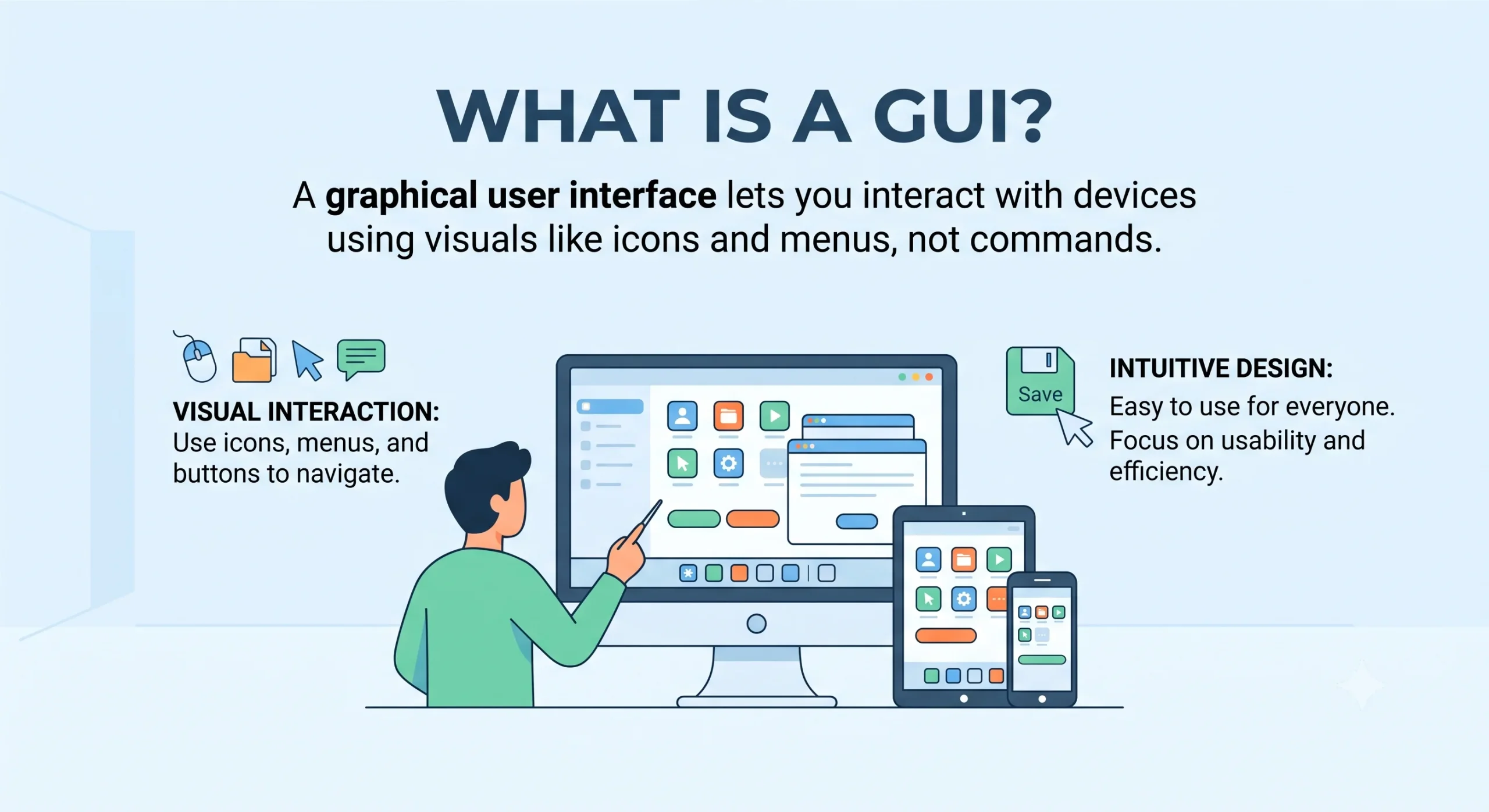











 ROI Calculator