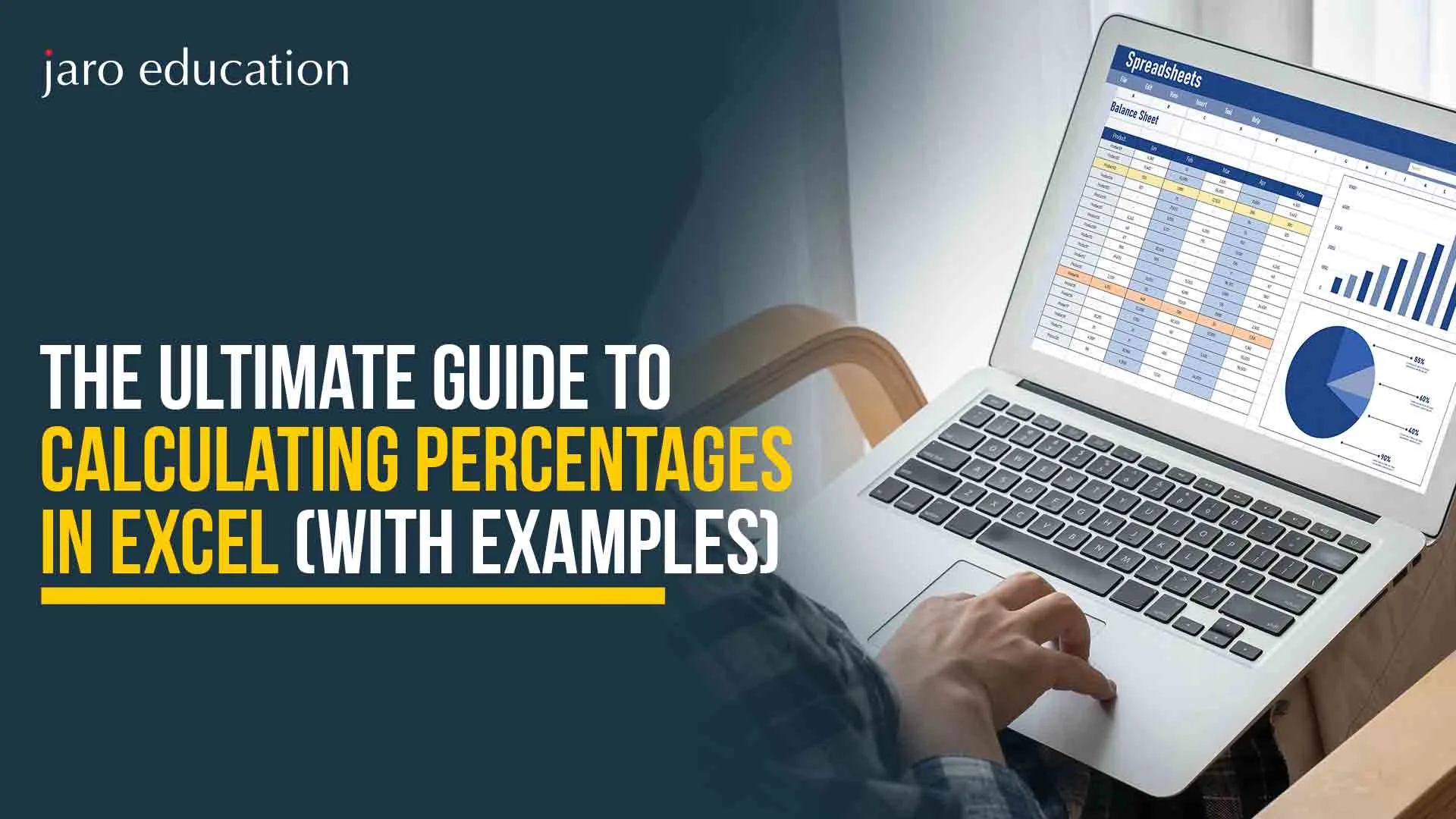
The Ultimate Guide to Calculating Percentages in Excel (With Examples)
J
By Jaro Education
June 4, 202510 min read
Last updated on October 13, 2026
SHARE THIS ARTICLE
Table Of Content
What Are Percentages in Excel?
How to Calculate Percentage in Excel
How to Format Percentages in Excel
Advanced Use Cases & Excel Functions
Percentages look simple in school, but they are chaotic in Excel. If you’ve ever stared at a spreadsheet wondering why your 20% looks like 2000% or why a perfectly correct formula throws a confusing decimal, you’re not alone. Whether you’re a student calculating marks, a professional handling monthly reports, or someone just trying to understand how much of your salary went to rent last month, you need to know how to calculate percentage in Excel properly.
This guide is for everyone who’s ever Googled how to get percentage in Excel and ended up more confused. We’ll cover formulas, formatting, advanced use cases, and real-world examples. By the end of this guide, you’ll not only know the percentage formula in Excel, but also how to format, fix, and apply it across multiple scenarios.
You can calculate percentages in excel in many ways depending on what you’re trying to find: overall percentage, change, part of a whole, etc.
1. Basic Percentage Calculation (Part / Total)
The most common use case is figuring out what percentage one number is of another.
Formula: =Part/Total
Example:
A student scored 42 out of 50. What’s the percentage?
Score
Total
Formula
Result
42
50
=B2/C2
84%
This is the core percentage formula in Excel. It forms the basis of most other calculations.
2. Using Cell References
Let’s say:
The score is in B2
Total is in C2
That’s why the formula:
=B2/C2
You can drag this formula across rows to apply it to multiple entries. After entering the formula, format the cell as a percentage using:
Ctrl + Shift + %
3. Marksheet Percentage Formula in Excel
Now let’s apply this to a real-world scenario: a student’s mark sheet.
Subject
Marks
Maths
90
Science
85
English
80
Total
=SUM(B2:B4)
Out of
300
To calculate the percentage:
=SUM(B2:B4)/B6
Format the result as a percentage. This is your standard way to calculate percentage in Excel for marksheets.
4. Percentage of a Total
Sometimes, you need to find out what percent a value is of a total, like sales made out of a target or budget used from an allocation.
Formula: =Value / Total
Description
Amount
Total Budget
50000
Used Amount
12000
% Used
=B3/B2
Result: 24% (if formatted)
This approach is used everywhere: finance, inventory, performance tracking, and more. If you’re wondering how to get percentage in Excel, this is a foundational method.
5. Calculating Percentage Increase or Decrease
When comparing two values, like sales from one month to the next, we use:
Formula: =(New – Old) / Old
Example:
Month
Sales
January
1000
February
1300
% Change
=(B3-B2)/B2 → Format as %
Result: 30%
This tells you the percentage increase. If the value is negative, it means there’s a decrease.
Old Value
New Value
Formula
Result
1000
1300
=(B3-B2)/B2
30%
1000
800
=(B3-B2)/B2
-20%
You’ve now mastered how to find percentage in Excel for growth or drop.
6. Reverse Percentage Calculation
What if you know the part and the percentage, and you want to find the total?
Formula: =Part / Percentage
Example:
If 25% of something is ₹5,000, the total is:
=5000/25%
Result: ₹20,000
Use this when working with discounts, taxes, or backwards calculations.
How to Format Percentages in Excel
Now that you can calculate percentage in Excel, let’s talk about formatting. Because if you don’t format correctly, Excel will either confuse you or make you look bad.
1. Use the Percent Style Button
Select the cell → Click the % icon in the Home tab
Or press: Ctrl + Shift + %
This automatically converts decimal values into percentages.
Note: This shortcut key formats the cell as a percentage but defaults to zero decimal places. To show more precision, right-click the cell → Format Cells → Percentage → Adjust decimal places.
2. Adjust Decimal Places
You may want more precision than a rounded whole number. To do this:
Right-click the cell → Format Cells → Number tab → Percentage
Choose how many decimal places you want (1 or 2 is usually ideal)
Example:
Value
Default %
One Decimal
Two Decimals
0.8423
84%
84.2%
84.23%
Common Mistakes in Formatting
Formatting errors are subtle but can drastically skew your results. Here’s what to watch out for:
Typing 20 instead of 0.2 expecting 20% Excel treats 20 as 2000% because it interprets it as 20 whole units. To show 20%, enter 0.2 or use =20/100 and then format it as a percentage.
Applying percentage formatting before writing the formula If you pre-format a blank cell, Excel may round or display unexpected results when the formula is entered. Always enter the formula first (like =B2/B1), then format the result as a percentage.
Formatting a number already in percent form If a value is already a percentage (like 75%), applying percentage formatting again will turn it into 7500%. Always check the formula bar before formatting.
Formatting entire columns blindly Applying percentage format to columns with mixed data (text, blank cells, or invalid entries) can create errors or inconsistencies.
Copying percentage formulas without adjusting references When copying, relative references can change and lead to incorrect percentage calculations. Always double-check formulas after copying them.
Always enter the formula first, then format. That’s your golden rule.
Free Courses
Free Microsoft Excel course: : Beginner to Advanced
Once you’ve wrapped your head around the basics, like how to calculate percentage in Excel, apply the percentage formula in Excel, and not fall for formatting traps, it’s time to step up your game. You can also start applying for free online courses that will vamp up your career.
Let’s walk through advanced use cases that’ll not only impress your boss or teacher but make your spreadsheets work for you.
1. IF Statements with Percentages
So, you’re automating student grades, employee evaluations, or even project status updates? IF functions paired with percentages let Excel make decisions on your behalf.
Here’s the logic:
=IF(B2>=0.4, “Pass”, “Fail”)
This formula evaluates whether the value in cell B2 is greater than or equal to 40% (written as 0.4). If yes, the output is “Pass”; if not, “Fail.” Now imagine applying this to hundreds of rows in a marksheet or HR performance file.
Always remember that Excel stores percentages as decimals. So 40% is entered as 0.4, and you must apply the percentage format to the cell afterward to display it correctly.
2. TEXT Function: Dynamic Reports With Readable Sentences
Whether you’re creating dashboards, client-facing updates, or management reports, you need clean, readable text. The TEXT function converts numerical values into formatted text with the right symbols—percentages, currency, dates.
Here’s the magic formula:
=”Sales increased by “&TEXT(B2,”0.00%”)
This turns a cell value like 0.1525 into a polished sentence: “Sales increased by 15.25%”.
It’s especially helpful if you’re trying to explain how to get percentage in Excel in a user-friendly way during presentations.
3. Pivot Tables with Percentages
Pivot tables are Excel’s power tools. They let you summarize vast data with a few clicks, and yes, they can calculate percentage in Excel automatically.
Here’s how to show item-wise contribution to the total:
Select your dataset and insert a Pivot Table (Insert > Pivot Table).
Drag your category field (e.g., Product Name or Department) into the Rows area.
Drag the value field (e.g., Sales or Quantity) into the Values area.
Right-click on any number in the Values column > Show Values As > % of Grand Total.
This is a game-changer for business analysis, especially if you’re working in marketing, sales, or finance.
4. Conditional Formatting with Percentages
Conditional Formatting lets you color-code cells based on their percentage values, instantly revealing what’s working and what’s not.
Use Case: You’ve got a column of percentages showing monthly growth per product.
Steps:
Select the cells containing the percentages.
Go to Home > Conditional Formatting > Color Scales.
Choose a gradient (e.g., Red-Yellow-Green).
Cells with low percentages turn red, medium ones yellow, and high performers go green. You can customize the color thresholds, too.
This technique is especially helpful when using a Marksheet Percentage formula in Excel, where you can highlight all grades below 35% in red, and everything above 85% in green, at a glance.
5. Percentage Difference Between Two Columns
If you want to compare last year’s revenue to this year’s and get the percentage change, here’s the go-to formula:
=(New Value – Old Value) / Old Value
Apply the percentage format, and you’re done. For example:
=(B2-A2)/A2
Where A2 is 2024’s revenue, and B2 is 2025’s revenue.
6. Advanced Use in Dashboards: Slicers + Percentages
If you’re building a dashboard in Excel, you can use Slicers to filter your data by categories. You can have all your percentage-based metrics update dynamically. That includes Region, Product Type, or Team.
Bonus Move: Combine slicers with Pivot Tables that show:
% of total sales
% growth vs. last year
% of team performance targets achieved
Add a TEXT function to display insights like:
=”Team A achieved “&TEXT(B2,”0.00%”)&” of the target”
7. Percent Rank: Find Out Who’s Winning
If you want to know who’s in the top 10% of a class or top 20% of sales performers, use the PERCENTRANK.INC function:
=PERCENTRANK.INC(range, cell)
It tells you what percentile a value is in. So, if a student is in the 0.92 percentile, they’re among the top scorers. Combine this with a Marksheet Percentage formula in Excel and you’ve got performance evaluation.
Real-World Examples
Percentages in Excel are practical, time-saving tools that transform the way you approach data. Let’s explore these examples further.
1. Applying the Marksheet Percentage Formula in Excel
Whether you’re tracking a class of students or your own grades, this simple template helps you calculate and track student percentages easily. Each student’s marks and their percentage will update automatically with just a few changes.
Subject
Marks Obtained
Total Marks
Percentage
English
78
100
=B2/C2 → Format as %
Math
88
100
=B3/C3 → Format as %
Science
85
100
=B4/C4 → Format as %
Total
=SUM(B2:B4)
300
=B5/C5 → Format as %
Average %
=AVERAGE(D2:D4)
.
Explanation:
Each student’s percentage is calculated by dividing the marks obtained (B column) by the total marks (C column).
The SUM function totals the marks across subjects, while AVERAGE gives the overall percentage for the student.
Use this template to track individual student performance and adapt it across classes. The template automatically updates when new data is added.
2. Salary Hike Calculator
This Salary Hike Calculator is ideal for HR managers or individuals wanting to calculate the percentage increase in salary. It helps visualize the raise compared to the previous salary.
Description
Amount
Previous Salary
50,000
New Salary
58,000
% Increase
=(B3-B2)/B2 → Format as Percentage
Employee Name
Previous Salary
New Salary
% Increase
John Doe
50,000
58,000
= (C2-B2)/B2 → 16%
Jane Smith
40,000
44,500
= (C3-B3)/B3 → 11.25%
Bob Williams
60,000
70,000
= (C4-B4)/B4 → 16.67%
Explanation:
The = (New Salary – Previous Salary) / Previous Salary formula gives you the percentage increase.
This calculation helps HR managers track salary hikes for multiple employees. You can also add formatting to highlight employees with significant salary increases.
3. Marketing Budget Tracker
Marketing teams need to know how much of their budget has been spent. This template helps visualize how each campaign is progressing towards budget utilization.
Campaign
Budget
Spent
% Used
Google Ads
10,000
8,000
=C2/B2
Facebook Ads
15,000
13,500
=C3/B3
Instagram Ads
5,000
4,200
=C4/B4
Total
=SUM(B2:B4)
=SUM(C2:C4)
=SUM(C2:C4)/SUM(B2:B4)
Campaign
Budget
Spent
Remaining
% Used
Google Ads
10,000
8,000
=B2-C2
=C2/B2
Facebook Ads
15,000
13,500
=B3-C3
=C3/B3
LinkedIn Ads
8,000
5,500
=B4-C4
=C4/B4
Total
33,000
26,000
=SUM(D2:D4)
=SUM(C2:C4)/SUM(B2:B4)
Explanation:
You can easily track the budget used and remaining for each campaign. The % Used formula automatically updates whenever you update the spent column.
The Total row sums up the budget and expenditure, showing you overall performance at a glance.
4. Sales Conversion Tracker
Sales professionals often track how well their leads are converting into sales. This template calculates conversion rates quickly.
Rep Name
Leads Contacted
Sales Closed
Conversion %
Alice
120
24
=C2/B2
Bob
200
30
=C3/B3
Charlie
150
22
=C4/B4
Month
Total Leads
Leads Closed
Conversion %
January
500
120
=C2/B2
February
480
150
=C3/B3
March
450
140
=C4/B4
Explanation:
Each salesperson’s performance is tracked by dividing the number of closed sales (C column) by the leads contacted (B column), giving a Conversion Percentage that shows how effective each rep is.
Use this to analyze individual performance or overall team metrics, and identify areas for improvement.
5. Investment Return Analyzer
Tracking your investments and their returns is essential to making informed financial decisions. This template helps you calculate the return on investment (ROI) quickly.
Asset
Initial Value
Current Value
Return %
Mutual Fund A
5,000
6,250
=(C2-B2)/B2
Stock XYZ
10,000
9,500
=(C3-B3)/B3
Real Estate A
20,000
22,500
=(C4-B4)/B4
Asset Name
Invested Amount
Current Value
Percentage Change
Gold Fund
15,000
16,500
= (C2-B2)/B2
Tech Stocks
25,000
28,000
= (C3-B3)/B3
Real Estate B
30,000
32,500
= (C4-B4)/B4
Explanation:
The formula =(Current Value – Initial Value) / Initial Value calculates the percentage change in the asset’s value, showing how your investments are performing.
The result tells you the percentage return on each asset, which is essential when comparing investment opportunities.
Tips for Using These Templates
Always format your results as percentages. This ensures clarity when presenting to others.
Label your data clearly. Proper headers like “Retention %” or “Conversion %” make it easier for anyone to understand what the table is showing.
Leverage Excel’s conditional formatting to highlight percentages that require attention (e.g., low retention or conversion rates).
Throughout this guide, you’ve learned how to use the percentage formula in Excel in various contexts. Whether you’re working on a school marksheet, a salary tracker, or a marketing budget, Excel gives you more than one way to reach the answer. For more options other than excel, you can also refer to this guide for Google Sheets.
All the methods discussed are not just theoretical. They’re meant to be applied in your own spreadsheets, whether you work in finance, marketing, education, operations, or just need to sort through personal data.
Now that you’re equipped with the knowledge, your interaction with Excel can become more efficient and accurate. You’ll be able to pull insights faster, reduce manual errors, and present cleaner, more reliable data in your work.
Frequently Asked Questions
This is one of the most common frustrations Excel users face, especially beginners. You might be using the correct math, but if you skip formatting the result as a percentage, Excel assumes you’re working with whole numbers. For instance, if you write =25/100, Excel correctly gives you 0.25. But if you then manually type 25 and apply percentage formatting later, Excel will interpret it as 25×100, showing it as 2500%. This error usually happens when users try to calculate percentage in Excel but forget that Excel stores percentages as decimals. The fix is easy: always enter your formula using decimal logic and format the result after.
If you’re building a student report card or marksheet, Excel can automate everything beautifully, but only if you apply the Marksheet Percentage formula in Excel correctly. For example, if a student scores 85 in Maths, 90 in Science, and 80 in English, and the total possible marks are 300, you’d use the formula =(Sum of Scores / Total Marks) to calculate the overall percentage. Then, format the result as a percentage. Many people also want Excel to assign grades based on these percentages (like A, B, C), and that can be handled using IF or VLOOKUP functions.
When you’re trying to calculate growth or a drop in metrics, be it revenue, followers, or expenses, the go-to approach is using the percentage formula in Excel for change, which is (New Value – Old Value) / Old Value. This formula gives you a decimal result that, once formatted, shows the exact percentage change. For example, if sales increased from ₹50,000 to ₹60,000, your formula becomes =(60000-50000)/50000, giving you 0.2 or 20% after formatting. A lot of users who are learning how to find percentages in Excel for performance reports mistakenly subtract and skip dividing by the original value, leading to wildly incorrect percentages.
This issue usually boils down to relative vs. absolute cell references. If you’re copying a percentage formula across rows, but the total (denominator) is fixed in one cell, you must lock that cell using the dollar sign ($). For example, let’s say you’re calculating what percent each item contributes to a total sales figure located in cell B1. The correct formula would be =A2/$B$1. As you copy this down, the reference to A2 will adjust, but B1 will stay fixed. Without this, Excel tries to calculate the percentage using incorrect rows. If you’re new to formulas and trying to understand how to calculate percentage in Excel across large datasets, mastering absolute referencing is crucial.
 HOME > BLOG > Business Management > The Ultimate Guide to Calculating Percentages in Excel (With Examples)
 June 4, 2025
 10 min read




 ChatGPT
 Perplexity
 Claude
 Grok












 ROI Calculator