HOME > BLOG > Data and Technology > Keyboard Shortcut Keys: The Ultimate A to Z Guide for Students and Professionals
Data and Technology
Keyboard Shortcut Keys: The Ultimate A to Z Guide for Students and Professionals
J
By Shubham Lal
August 29, 20269 min read
Published on August 29, 2026
SHARE THIS ARTICLE
Table Of Content
What Are Keyboard Shortcut Keys?
Why Are Keyboard Shortcuts Important?
Essential Keyboard Shortcut Keys
A to Z Shortcut Keys
Key Insights
Keyboard shortcut keys help students and professionals complete common computer tasks faster, reduce repetitive mouse movements, and improve productivity.
Essential shortcuts such as Ctrl + C, Ctrl + V, Ctrl + S, Ctrl + F, and Ctrl + A simplify everyday tasks like copying, pasting, saving, searching, and selecting content.
The A to Z shortcut keys provide a quick reference for commonly used Ctrl-based commands, although their functions can vary across applications.
Excel shortcuts such as F2, Alt + =, Ctrl + `, and F9 can make formula-related tasks, calculations, navigation, and data work more efficient.
In this blog, you'll learn about keyboard shortcut keys, the select all shortcut key, A to Z shortcut keys, Excel formulas shortcut keys, browser and text-editing shortcuts, and practical ways to learn them.
Keyboard shortcuts are one of the simplest ways to work faster on a computer. Instead of repeatedly switching between the keyboard and mouse, users can press a combination of keys to perform common actions such as copying text, saving a document, opening a new tab, searching for information, or switching between applications.
For students, keyboard shortcuts can make studying, note-taking, research, presentations, and assignments more efficient. For professionals, they can reduce repetitive actions and make everyday tasks in documents, spreadsheets, browsers, and other applications more convenient.
This guide covers essential keyboard shortcut keys, including commonly used Windows shortcuts, an A to Z list, Excel shortcuts, and useful tips for learning them.
Keyboard shortcut keys are combinations of two or more keys that perform a specific command. For example, Ctrl + C copies selected content, while Ctrl + V pastes it.
Shortcuts can be used across operating systems and applications, although the exact combinations may differ. The shortcuts discussed in this guide primarily focus on Windows keyboards and commonly used applications.
Learning shortcuts can help users reduce repetitive mouse movements and access frequently used functions more quickly.
Why Are Keyboard Shortcuts Important?
Keyboard shortcuts can be useful for both students and professionals because they make everyday computer tasks more streamlined.
1. Save Time
Common actions such as copying, pasting, saving, searching, and switching between windows can be performed without navigating through menus.
2. Improve Productivity
When frequently used commands become familiar, users can complete repetitive tasks more efficiently.
3. Reduce Mouse Dependency
Shortcuts allow users to perform many actions directly from the keyboard instead of constantly moving between the keyboard and mouse.
4. Make Multitasking Easier
Shortcuts for switching applications, tabs, and windows can make it easier to work across multiple resources.
5. Support Efficient Learning and Work
Students can use shortcuts while writing assignments, preparing presentations, browsing research material, and working with spreadsheets. Professionals can use them for documents, emails, data analysis, presentations, and other routine tasks.
Essential Keyboard Shortcut Keys
Before learning an A to Z list, it is useful to remember the most frequently used shortcuts.
Action
Shortcut Key
Copy
Ctrl + C
Cut
Ctrl + X
Paste
Ctrl + V
Undo
Ctrl + Z
Redo
Ctrl + Y
Select all
Ctrl + A
Save
Ctrl + S
Open
Ctrl + O
Print
Ctrl + P
Find
Ctrl + F
New document/window
Ctrl + N
Close window/tab
Ctrl + W
Refresh
F5
Switch applications
Alt + Tab
Lock computer
Windows + L
The select all shortcut key, Ctrl + A, is particularly useful when you want to select all text or items within the active application. Its exact behavior can depend on the application you are using.
The following a to z shortcut keys provide a quick reference to commonly used Ctrl-based commands. Not every letter has a universal shortcut across all applications, so some combinations may have different functions depending on the software.
A — Ctrl + A
Selects all available content or items in the active application.
B — Ctrl + B
Applies bold formatting in many text-editing applications.
C — Ctrl + C
Copies the selected text, file, or other content.
D — Ctrl + D
Its function depends on the application. In many browsers, it is commonly used to bookmark the current page.
E — Ctrl + E
The function varies by application. In some programs, it is used for alignment or other application-specific commands.
F — Ctrl + F
Opens the Find function, allowing you to search for specific text or information.
G — Ctrl + G
Often opens a Go To function in applications that support it, allowing users to navigate to a specific location.
H — Ctrl + H
Commonly opens Find and Replace in applications that support this command.
I — Ctrl + I
Applies italic formatting in many text-editing applications.
J — Ctrl + J
Its function varies between applications and may be assigned to application-specific commands.
K — Ctrl + K
Commonly opens an option for inserting or editing a hyperlink in many productivity applications.
L — Ctrl + L
In many web browsers, moves the cursor to the address bar.
M — Ctrl + M
The function varies depending on the software being used.
N — Ctrl + N
Creates a new document, window, or other item in many applications.
O — Ctrl + O
Opens an existing file or document.
P — Ctrl + P
Opens the print dialog or printing options.
Q — Ctrl + Q
Its function depends on the application and may be assigned to a specific command.
R — Ctrl + R
The function varies by application. In some programs, it can be associated with refresh or alignment.
S — Ctrl + S
Saves the current document, workbook, or file.
T — Ctrl + T
Often opens a new browser tab. In some applications, it may perform a different function.
U — Ctrl + U
Applies underline formatting in many text-editing applications.
V — Ctrl + V
Pastes copied or cut content.
W — Ctrl + W
Closes the current window, document, or browser tab in many applications.
X — Ctrl + X
Cuts the selected content.
Y — Ctrl + Y
Usually redoes or repeats the previous action in applications that support the command.
Z — Ctrl + Z
Undoes the most recent action.
Most Useful Shortcuts for Students
Students regularly work with documents, browsers, presentations, PDFs, spreadsheets, and online learning platforms. The following shortcuts can make common academic tasks easier:
Ctrl + A: Select all content
Ctrl + C: Copy selected content
Ctrl + V: Paste content
Ctrl + X: Cut content
Ctrl + Z: Undo an action
Ctrl + Y: Redo an action
Ctrl + F: Find information within a document or page
Ctrl + S: Save work
Ctrl + P: Print
Ctrl + N: Create a new document or window
Ctrl + O: Open a file
Ctrl + W: Close the current window or tab
Alt + Tab: Switch between open applications
Ctrl + T: Open a new browser tab
For research-heavy assignments, Ctrl + F can be especially useful for quickly locating a word or phrase in a long document or webpage.
Professionals often work with multiple applications and documents simultaneously. Some useful shortcuts include:
Windows + D
Shows or hides the desktop, making it easier to access desktop items.
Windows + E
Opens File Explorer.
Windows + L
Locks the computer.
Alt + Tab
Switches between open applications.
Alt + F4
Closes the active application or window.
Ctrl + Shift + Esc
Opens Task Manager.
Windows + Arrow Keys
Can be used to position or snap windows on the screen.
Ctrl + Shift + N
Creates a new folder in File Explorer.
These shortcuts can be particularly helpful when moving between files, applications, and browser windows throughout the workday.
Excel Formulas Shortcut Keys
Excel is one of the most useful applications for students and professionals working with data. Learning Excel formulas shortcut keys can make spreadsheet work more efficient.
It is important to distinguish between formulas and shortcuts. A formula performs a calculation, while a shortcut performs an action using the keyboard.
Here are some useful Excel shortcuts:
Action
Shortcut
Save workbook
Ctrl + S
Copy selection
Ctrl + C
Paste selection
Ctrl + V
Cut selection
Ctrl + X
Undo
Ctrl + Z
Redo
Ctrl + Y
Select all
Ctrl + A
Find
Ctrl + F
Edit active cell
F2
AutoSum
Alt + =
Create a table
Ctrl + T
Open Format Cells
Ctrl + 1
Go to a specific cell
Ctrl + G
Insert a new worksheet
Shift + F11
Select an entire column
Ctrl + Spacebar
Select an entire row
Shift + Spacebar
Move to the edge of a data region
Ctrl + Arrow key
Apply Flash Fill
Ctrl + E
Show formulas
Ctrl + `
These shortcuts can help users navigate worksheets, format information, enter data, and work with formulas more efficiently.
When working with formulas, several keyboard commands are especially useful.
F2 allows you to edit the active cell and is useful when checking or modifying a formula.
Alt + = applies AutoSum, making it easier to quickly add values in a range.
Ctrl + ` toggles between displaying formulas and displaying their calculated results in Excel.
F9 recalculates formulas in Excel under applicable calculation settings.
These shortcuts are helpful for users who frequently work with calculations, reports, budgets, dashboards, or data analysis.
Browser Shortcut Keys You Should Know
Web browsers are used extensively for research, communication, learning, and professional tasks. A few shortcuts can make browsing more efficient.
Ctrl + T: Open a new tab
Ctrl + W: Close the current tab
Ctrl + Shift + T: Reopen the last closed tab
Ctrl + Tab: Move to the next tab
Ctrl + Shift + Tab: Move to the previous tab
Ctrl + L: Select the address bar
Ctrl + R: Refresh the page
Ctrl + D: Bookmark the current page
Ctrl + F: Find text on the current page
Ctrl + +: Zoom in
Ctrl + -: Zoom out
Ctrl + 0: Restore the default zoom level
Students can use these shortcuts while researching topics, while professionals can use them to manage multiple web resources more efficiently.
Text Editing Shortcut Keys
Text editing is a common activity across documents, emails, reports, and presentations. These shortcuts can simplify formatting and navigation.
Ctrl + B: Bold
Ctrl + I: Italic
Ctrl + U: Underline
Ctrl + A: Select all
Ctrl + C: Copy
Ctrl + X: Cut
Ctrl + V: Paste
Ctrl + Z: Undo
Ctrl + Y: Redo
Ctrl + F: Find
Ctrl + H: Find and replace where supported
Home: Move to the beginning of a line
End: Move to the end of a line
Ctrl + Home: Move to the beginning of a document in many applications
Ctrl + End: Move to the end of a document in many applications
Uncommon Keyboard Shortcut Keys: Beyond the Basics
Shortcut
What It Does
Windows + V
Opens clipboard history
Windows + Shift + S
Takes a selected-area screenshot
Windows + .
Opens the emoji and symbols panel
Windows + R
Opens the Run dialog box
Windows + I
Opens Windows Settings
Windows + Tab
Opens Task View
Windows + Shift + Left/Right Arrow
Moves the active window to another monitor
Ctrl + Shift + Enter
Opens a search result in a new browser tab in some browsers
Ctrl + Shift + Delete
Opens the browser’s clear browsing-data settings
Ctrl + Shift + B
Shows or hides the browser bookmarks bar
Ctrl + Shift + J
Opens the browser Developer Tools/Console in many browsers
Ctrl + Shift + M
Toggles responsive/device mode in some browser developer tools
Alt + Space
Opens the active window’s system menu
Alt + Enter
Opens properties for a selected file/folder
Shift + Delete
Permanently deletes a selected file without moving it to Recycle Bin
Shift + F10
Opens the context menu for the selected item
Ctrl + Backspace
Deletes the previous word while typing
Ctrl + Delete
Deletes the next word while typing
Ctrl + Left/Right Arrow
Moves the cursor one word at a time
Shift + Home
Selects text from the cursor to the beginning of the line
Shift + End
Selects text from the cursor to the end of the line
How to Learn Keyboard Shortcuts Quickly
Trying to memorize dozens of shortcuts at once can be difficult. A better approach is to learn them gradually.
Start with five essential commands: Ctrl + C, Ctrl + V, Ctrl + X, Ctrl + Z, and Ctrl + S. Once these become familiar, add shortcuts for search, navigation, formatting, and application-specific tasks.
You can also group shortcuts according to their purpose. For example, learn editing shortcuts together, browser shortcuts together, and Excel shortcuts together.
Practice is more effective than simply reading a shortcut list. Whenever you are about to use the mouse for a frequently repeated action, check whether a keyboard shortcut is available.
It is also important to verify shortcuts when working with specialized software because application-specific commands may differ from general keyboard shortcuts.
Conclusion
Learning keyboard shortcut keys can make everyday computer use more efficient for students and professionals. Basic commands such as copy, paste, save, undo, find, and select all are useful across many applications, while specialized shortcuts can improve productivity in Excel, browsers, documents, and other software.
The select all shortcut key, Ctrl + A, is one of the most useful commands to remember, while Excel users can benefit from shortcuts for formulas, navigation, formatting, and datamanagement. The a to z shortcut keys also provide a useful framework for learning common Ctrl-based commands, although their functions can vary by application.
Rather than trying to memorize every shortcut at once, start with the commands you use most frequently and gradually expand your knowledge. With regular practice, keyboard shortcuts can become a natural part of your everyday workflow.
Frequently Asked Questions
Some of the most useful shortcuts include Ctrl + C for copy, Ctrl + V for paste, Ctrl + X for cut, Ctrl + Z for undo, Ctrl + S for save, Ctrl + F for find, and Ctrl + A for selecting all content.
The select all shortcut key on a Windows keyboard is Ctrl + A. It is commonly used to select all available text, files, or other content in the active application.
Useful Excel shortcuts include F2 for editing the active cell, Alt + = for AutoSum, Ctrl + ` for displaying formulas, F9 for recalculation, and Ctrl + E for Flash Fill. The exact behavior can vary depending on the Excel version and environment.
A to Z shortcut keys generally refer to commonly used keyboard combinations associated with letters from A through Z, often using the Ctrl key. Their functions can vary depending on the application.
Yes. Many shortcuts use Ctrl on Windows, while Mac applications commonly use the Command key. Some shortcuts may also vary depending on the application, operating system, or keyboard layout.
Shubham Lal
Lead Software Developer
Shubham Lal joined Microsoft in 2017 and brings 8 years of experience across Windows, Office 365, and Teams. He has mentored 5,000+ students, supported 15+ ed-techs, delivered 60+ keynotes including TEDx, and founded AI Linc, transforming learning in colleges and companies.
 HOME > BLOG > Data and Technology > Keyboard Shortcut Keys: The Ultimate A to Z Guide for Students and Professionals
 August 29, 2026
 9 min read





 Key Insights
 ChatGPT
 Perplexity
 Claude
 Grok
Grok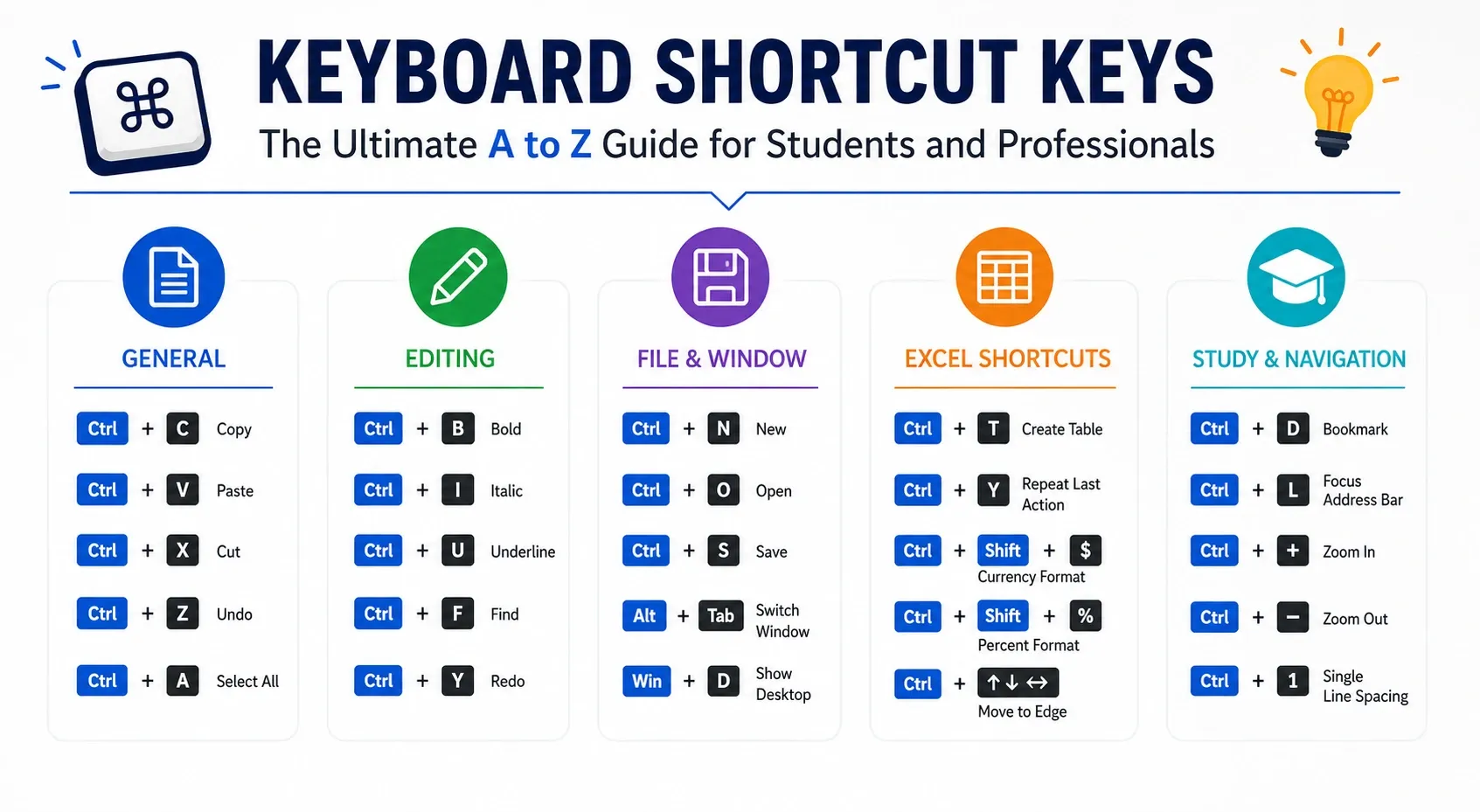












 ROI Calculator