
Excel Shortcut Keys: A-Z List of the Top 100+
 April 29, 2025
 8 min read





Table Of Content
- Top 25 Most Used Excel Shortcut Keys (Quick Reference)
- Basic Excel Shortcut Keys for Beginners
- Excel Shortcut Keys for Navigation
- Excel Shortcut Keys for Formatting & Aesthetics
In today’s data-driven corporate ecosystem, efficiency is no longer optional, it’s a competitive advantage. Whether you're working in finance, marketing, Human Resource, or analytics, mastering excel shortcut keys can significantly accelerate your workflow and reduce manual effort.
This guide is designed as a reference-first resource, giving you instant access to all excel shortcut keys, categorized for real-world use, so you can work smarter, not harder.
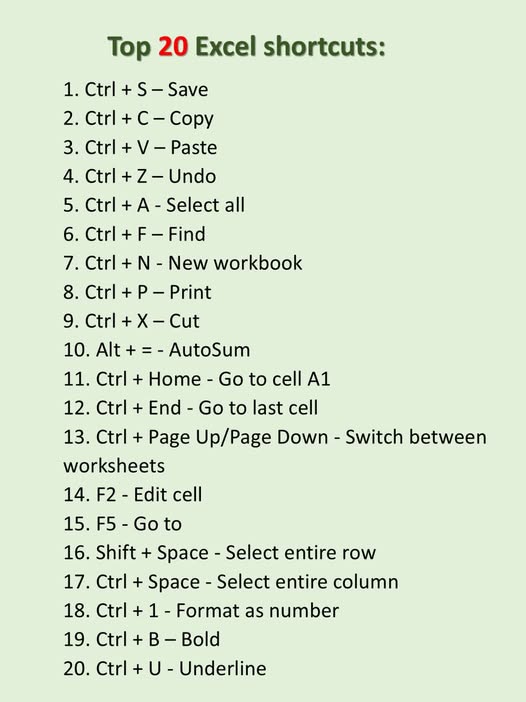
Top 25 Most Used Excel Shortcut Keys (Quick Reference)
*facebook.com
If you want to learn only a few shortcuts, start with these. These are the most widely used excel shortcut keys across industries.
| Shortcut | Function |
| Ctrl + C | Copy selected cells |
| Ctrl + V | Paste copied data |
| Ctrl + X | Cut selected data |
| Ctrl + Z | Undo last action |
| Ctrl + Y | Redo last action |
| Ctrl + S | Save workbook |
| F12 | Save As in Excel |
| Ctrl + A | Select all cells |
| Ctrl + F | Find data |
| Ctrl + H | Replace data |
| Ctrl + Arrow Keys | Navigate to edge of data |
| Ctrl + Shift + L | Shortcut key for filter in Excel |
| Ctrl + T | Convert data into table |
| Alt + = | AutoSum formula |
| Ctrl + 1 | Format cells dialog box |
| Ctrl + Shift + $ | Apply currency format |
| Ctrl + Shift + % | Apply percentage format |
| Ctrl + B | Bold text |
| Ctrl + I | Italic text |
| Ctrl + U | Underline text |
| F2 | Edit active cell |
| Ctrl + D | Fill down |
| Ctrl + R | Fill right |
| Shift + F11 | Insert new worksheet |
| Alt + N, V | Shortcut key for pivot table in Excel |
Pro Tip: Mastering just these 25 shortcuts can improve your Excel efficiency by up to 40% in daily tasks.
Basic Excel Shortcut Keys for Beginners
For professionals just getting started, these basic excel shortcut keys build a strong foundation for faster execution and better control over spreadsheets.
| Shortcut | Function |
| Ctrl + N | Create new workbook |
| Ctrl + O | Open existing workbook |
| Ctrl + P | Print worksheet |
| Ctrl + W | Close workbook |
| Ctrl + Tab | Switch between open workbooks |
| Alt + F4 | Close Excel |
| Ctrl + Esc | Exit full-screen mode |
| Ctrl + Shift + Tab | Switch to previous workbook |
| Ctrl + K | Insert hyperlink |
| Ctrl + Shift + “+” | Shortcut key to insert row in Excel |
These shortcuts are essential for managing files and navigating the Excel interface efficiently.
Excel Shortcut Keys for Formatting & Aesthetics
Data presentation is just as important as data accuracy. These excel shortcut keys help create visually structured and professional spreadsheets.
| Shortcut | Function |
| Ctrl + B | Bold text |
| Ctrl + I | Italic text |
| Ctrl + U | Underline text |
| Alt + H, H | Fill color |
| Alt + H, F, C | Font color |
| Ctrl + Shift + L | Apply/remove filter |
| Ctrl + T | Format as table |
| Alt + H, A, C | Center align text |
| Alt + H, B | Apply borders |
Pro Insight: Clean formatting improves readability, especially in dashboards and reports shared across teams.
Excel Shortcut Keys for Formulas and Functions
Formulas are the backbone of Excel. Knowing excel formulas shortcut keys can drastically reduce calculation time and improve accuracy.
| Shortcut | Function |
| Alt + = | AutoSum function |
| Ctrl + ` | Show/hide formulas |
| Ctrl + Shift + Enter | Apply array formula |
| Ctrl + Shift + U | Expand/collapse formula bar |
| F4 | Toggle absolute/relative references |
| Ctrl + A | Open function arguments dialog |
| Tab | Autofill formula names |
Common Formula-Based Shortcuts
- =A1+B1 → Addition
- =A1-B1 → Subtraction
- =A1*B1 → Multiplication
- =A1/B1 → Division
These excel shortcut keys formula techniques are widely used in financial modeling, reporting, and data analysis.
Excel Shortcut Keys for Data Entry
Efficient data entry is critical for maintaining accuracy and speed. These excel shortcut keys help streamline repetitive input tasks.
| Shortcut | Function |
| Enter | Move to next cell |
| Shift + Enter | Move to previous cell |
| Tab | Move right |
| Shift + Tab | Move left |
| Ctrl + D | Fill down |
| Ctrl + R | Fill right |
| Ctrl + ; | Insert current date |
| Ctrl + Shift + : | Insert current time |
| Alt + Enter | New line in same cell |
| Ctrl + E | Flash fill |
Use Case: Data entry operators and analysts use these shortcuts to reduce manual errors and increase speed.
Excel Shortcut Keys for Pivot Tables
Pivot tables are powerful tools for summarizing and analyzing data. These shortcuts simplify their creation and management.
| Shortcut | Function |
| Alt + N, V | Insert Pivot Table |
| Alt + J, T, A | Open Analyze tab |
| Alt + J, T, F | Toggle field list |
| Alt + J, T, R | Refresh Pivot Table |
| Alt + J, T, G | Group data |
| Alt + J, T, U | Ungroup data |
Business Impact: Pivot tables combined with shortcut keys enable faster decision-making through dynamic reporting.
Excel Shortcut Keys for Filters and Data Management
Filtering data is essential for analysis. These shortcuts help isolate and organize information efficiently.
| Shortcut | Function |
| Ctrl + Shift + L | Apply/remove filter |
| Alt + Down Arrow | Open filter dropdown |
| Ctrl + Space | Select entire column |
| Shift + Space | Select entire row |
Using the shortcut key for filters in Excel allows professionals to quickly analyze subsets of data without manual sorting.
Advanced Excel Shortcut Keys You Should Start Using Today
Once you’ve mastered the basics, the real competitive edge comes from leveraging advanced excel shortcut keys that reduce multi-step workflows into single keystrokes. These are particularly useful for analysts, accountants, and business professionals working with high-volume datasets.
| Shortcut | Function |
| Ctrl + Shift + Arrow Keys | Select entire data range |
| Ctrl + Space | Select entire column |
| Shift + Space | Select entire row |
| Ctrl + Shift + End | Select from current cell to last used cell |
| Ctrl + G | Open “Go To” dialog box |
These shortcuts are essential when working with thousands of rows, enabling rapid selection without manual dragging.
Strategic Insight: High-performing Excel users rely heavily on selection shortcuts to manipulate bulk data efficiently, especially in reporting and dashboard creation.
Excel Shortcut Keys for Inserting, Deleting, and Managing Data
Data structuring is at the core of Excel usage. Whether you’re managing financial sheets or operational reports, these shortcuts enhance your ability to manipulate data instantly.
| Shortcut | Function |
| Ctrl + Shift + “+” | Shortcut key to insert row in Excel |
| Ctrl + “-“ | Delete selected row/column |
| Ctrl + Shift + “=” | Insert new cells |
| Alt + H, D, R | Delete row |
| Alt + H, D, C | Delete column |
According to Microsoft’s official documentation, actions like inserting, deleting, and formatting can be executed instantly using keyboard combinations instead of navigating menus .
Use Case: In financial modeling, inserting rows between datasets is a frequent task, using shortcuts ensures structural consistency without disrupting formulas.
Excel Shortcut Keys for Merge, Alignment, and Formatting
Presentation plays a crucial role in how data is interpreted. These excel shortcut keys help ensure your spreadsheets are both functional and visually impactful.
| Shortcut | Function |
| Alt + H, M, C | Shortcut key for merge in Excel |
| Alt + H, A, L | Left align |
| Alt + H, A, R | Right align |
| Alt + H, A, C | Center align |
| Ctrl + 1 | Open format cells dialog |
Pro Tip: Avoid overusing merge cells in large datasets, use alignment shortcuts instead for better compatibility with formulas and pivot tables.
Excel Shortcut Keys for Filters and Sorting
Filtering is a core feature for analyzing large datasets. Using shortcuts makes the process faster and more intuitive.
| Shortcut | Function |
| Ctrl + Shift + L | Shortcut key for filter in Excel |
| Alt + Down Arrow | Open filter dropdown |
| Alt + A, S, S | Sort ascending |
| Alt + A, S, D | Sort descending |
Filtering allows users to isolate relevant data instantly, an essential capability in business analytics and reporting environments.
Business Insight: Data analysts frequently use filtering shortcuts to extract insights without modifying the original dataset.
Excel Shortcut Keys for Workbook and File Management
Managing files efficiently is just as important as working within them. These ms excel shortcut keys streamline file handling operations.
| Shortcut | Function |
| Ctrl + N | Create new workbook |
| Ctrl + O | Open workbook |
| Ctrl + S | Save workbook |
| F12 | Save As in Excel |
| Ctrl + W | Close workbook |
| Alt + F4 | Exit Excel |
Industry-standard shortcut references confirm that commands like save (Ctrl + S), open (Ctrl + O), and save as (F12) are among the most frequently used in Excel workflows.
Efficiency Hack: Using F12 for “Save As” prevents overwriting original files, critical in version-controlled environments.
Excel Shortcut Keys for Drag-and-Drop Efficiency
While drag-and-drop is often associated with mouse usage, combining it with keyboard keys unlocks additional capabilities.
| Action | Shortcut |
| Drag to copy | Ctrl + Drag |
| Drag to move | Drag |
| Drag to insert | Shift + Drag |
| Drag to duplicate worksheet | Ctrl + Drag sheet tab |
These shortcuts enhance speed in restructuring datasets and reorganizing sheets.
Excel Shortcut Keys for Power Users (Hidden Gems)
These lesser-known shortcuts can significantly boost productivity once incorporated into your workflow.
| Shortcut | Function |
| Ctrl + E | Flash Fill |
| Ctrl + Shift + “~” | Apply general format |
| Ctrl + Shift + “#” | Apply date format |
| Ctrl + Shift + “@” | Apply time format |
| Ctrl + Shift + “!” | Apply number format |
Advanced Insight: Flash Fill (Ctrl + E) is particularly powerful for pattern recognition ideal for cleaning and structuring raw data.
How Excel Shortcut Keys Drive Business Efficiency
Understanding excel all shortcut keys is not just a technical skill, it’s a business enabler.
- Accelerated Task Execution: Shortcuts reduce dependency on the mouse, allowing faster execution of repetitive operations.
- Improved Data Accuracy: Manual errors decrease significantly when using predefined keyboard combinations.
- Enhanced Decision-Making: Faster data manipulation leads to quicker insights and better business decisions.
- Cross-Functional Utility: From finance to marketing, Excel shortcuts are universally applicable across departments.
Research and industry insights consistently highlight that professionals who use shortcuts work faster and more efficiently compared to those relying on manual navigation.
Pro-Level Strategy: How to Master Excel Shortcut Keys Faster
Instead of trying to memorize everything at once, follow a structured learning approach:
Step 1: Focus on High-Impact Shortcuts
Start with:
- Copy, paste, save
- Navigation shortcuts
- Basic formulas
Step 2: Apply in Real Work Scenarios
Use shortcuts in daily tasks instead of relying on menus.
Step 3: Layer Advanced Shortcuts Gradually
Introduce:
- Pivot table shortcuts
- Formatting shortcuts
- Data analysis shortcuts
Step 4: Create a Personalized Shortcut System
Different roles require different shortcuts:
- Finance → formulas & pivot tables
- Marketing → formatting & filters
- HR → data entry & navigation
How Jaro Education Can Help You Master Excel
Learning excel shortcuts and formulas is only the beginning; applying them effectively in real-world business scenarios is where true mastery lies. That’s where Jaro Education steps in. As a trusted platform for executive education and professional upskilling, Jaro Education partners with leading universities and institutes to offer programs that combine technical expertise with practical applications.
By enrolling in one of Jaro’s business or management programs, you gain access to structured training that integrates tools like Microsoft Excel, data analytics, and business intelligence into the curriculum. This ensures you’re not just memorizing Excel formulas shortcut keys but also applying them to financial modeling, data visualization, reporting, and decision-making.
Take the next step in your career growth with Jaro Education and master Excel skills that truly make an impact.
Conclusion
Mastering excel shortcut keys is one of the most effective ways to enhance productivity, accuracy, and efficiency in today’s data-centric work environment.
From basic operations to advanced data analysis, these shortcuts transform Excel into a powerful business tool. Whether you’re a beginner or an experienced professional, integrating these shortcuts into your daily workflow can significantly improve performance and output quality.
The key is consistency, start small, practice regularly, and gradually expand your shortcut toolkit.
Frequently Asked Questions
You can apply or remove filters using Ctrl + Shift + L, one of the most widely used shortcuts in data analysis.
Press F12 to open the “Save As” dialogue box quickly.
Related Courses
Explore our programs







Find a Program made just for YOU
We'll help you find the right fit for your solution. Let's get you connected with the perfect solution.

Is Your Upskilling Effort worth it?
 ROI Calculator

Are Your Skills Meeting Job Demands?
Try our Skill Gap tool
Experience Lifelong Learning and Connect with Like-minded Professionals
Explore Jaro Connect

