
How to Split Cells in Excel: A Step-by-Step Guide for Beginners
 September 16, 2026
 8 min read





Table Of Content
- What Does It Mean to Split a Cell in Excel?
- How to Split Cells in Excel Using Text to Columns
- How to Divide a Cell Using the TEXTSPLIT Function
- How Can I Split a Cell in Excel Using Flash Fill?
 Key Insights
- Excel provides several ways to split information stored in one cell, including Text to Columns, Flash Fill, formulas, TEXTSPLIT, and Power Query.
- Text to Columns is a simple method for separating data using delimiters such as spaces, commas, tabs, or semicolons.
- TEXTSPLIT can separate information using a formula, while Flash Fill can identify and apply patterns without requiring complicated formulas.
- Choosing the wrong delimiter, overwriting nearby data, or working with inconsistent formats can lead to incorrect results, so checking the preview and creating a backup is recommended.
- In this blog, you'll learn how to split cells in Excel using Text to Columns, TEXTSPLIT, Flash Fill, and formulas, along with methods for separating data by commas or spaces and avoiding common mistakes.
Ever looked at an Excel sheet and thought, “Why is all this information sitting in one cell?” If you have ever received a spreadsheet with names, addresses, or other details packed into a single column, you know how difficult it can be to organize that data.
The good news is that you do not have to separate everything manually. Excel has several useful features that can help you split information quickly and keep your spreadsheet organized.
In this blog, we will explain how to split cells in Excel using simple methods such as Text to Columns, Flash Fill, formulas, and the TEXTSPLIT function. We will also cover how to divide a cell, how to split a cell in Excel, how to segregate data in Excel, and how to subdivide cells in Excel.
 ChatGPT
 Perplexity
 Claude
 Grok
GrokWhat Does It Mean to Split a Cell in Excel?
Splitting a cell in Excel means separating the information stored in one cell into two or more cells.
For example, imagine an Excel sheet has the following information in cell A2:
ABC XYZ
You may want to separate it into two columns:
| First Name | Last Name |
| ABC | XYZ |
Similarly, you may have an address stored in one cell:
ABC, XYZ, India
You may want to separate it into different columns for the city, state, and country.
Excel does not have a direct “Split Cell” button for dividing the contents of a cell. Instead, you can use features such as Text to Columns, Flash Fill, formulas, TEXTSPLIT, and Power Query.
The best option depends on the type and amount of data you are working with.
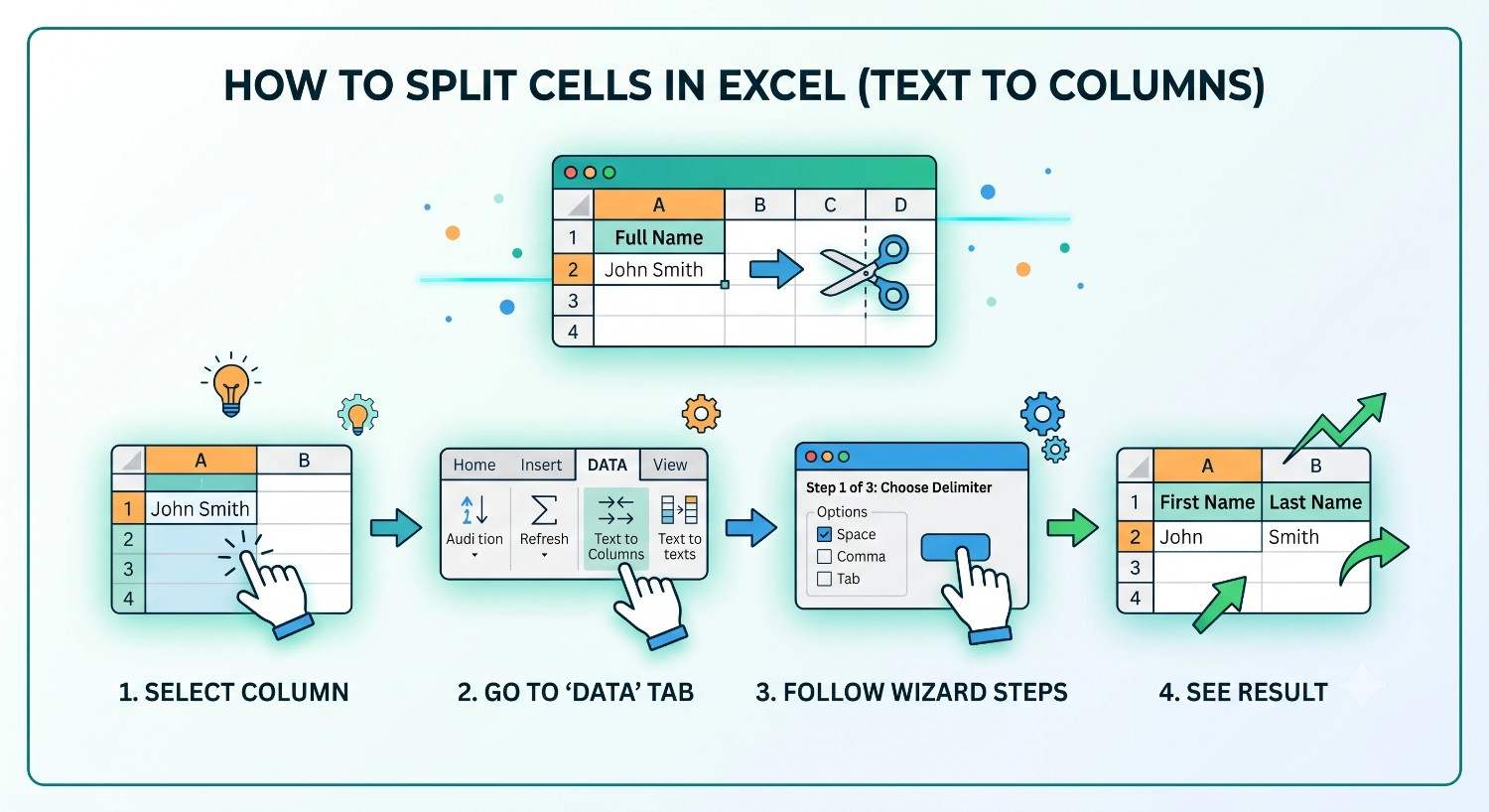
How to Split Cells in Excel Using Text to Columns
If you are wondering how to split cells in Excel without using complicated formulas, Text to Columns is one of the easiest options.
It is particularly useful when your data is separated by a space, comma, tab, semicolon, or another character.
For example, suppose Column A contains:
ABC XYZ
XYZ ABC
ABC PQR
You want to separate the first and second parts into different columns.
Step 1: Select the Data
Start by selecting the cells that contain the information you want to split.
For example, if your data is in cells A2 to A10, select that range.
Step 2: Go to the Data Tab
At the top of Excel, click on the Data tab.
Look for the Text to Columns option and click on it.
A new window will open with instructions for separating your data.
Step 3: Choose Delimited
Excel will give you two options:
Delimited: Use this when your information is separated by something such as a space, comma, tab, or semicolon.
Fixed Width: Use this when your information follows a fixed spacing pattern.
For most beginner tasks, Delimited is the more useful option.
Select Delimited and click Next.
Step 4: Select the Delimiter
Now choose what separates the information in your cells.
For example, if your data looks like:
ABC XYZ
select Space.
If your data looks like:
ABC, XYZ, India
select Comma.
Excel will show a preview of how your data will be divided.
Step 5: Select the Destination
Choose where you want the separated information to appear.
You can place it in the columns next to the original data or select another location.
Once everything looks correct, click Finish.
Your single column of information will now be divided into separate columns.





How to Divide a Cell Using the TEXTSPLIT Function
If you have a newer version of Excel, the TEXTSPLIT function provides another quick way to separate information.
Suppose cell A2 contains:
ABC, XYZ, India
You can enter:
=TEXTSPLIT(A2,”,”)
Excel will separate the information wherever it finds a comma.
The result will look like this:
| Column 1 | Column 2 | Column 3 |
| ABC | XYZ | India |
You can also use a space as the separator.
For example:
=TEXTSPLIT(A2,” “)
This will separate the words wherever Excel finds a space.
The TEXTSPLIT function is useful when you want to split data using a formula instead of manually going through the Text to Columns wizard.
Keep in mind that the availability of TEXTSPLIT depends on your Excel version.
How Can I Split a Cell in Excel Using Flash Fill?
Flash Fill is another handy Excel feature, especially when your data follows a predictable pattern.
Suppose you have the following information in Column A:
ABC XYZ
You want to extract ABC into Column B.
Type ABC in B2.
When you start typing the next value in B3, Excel may recognize the pattern and automatically suggest the remaining entries.
Press Enter to accept the suggestion.
You can use the same technique to separate last names, codes, locations, or other information.
The advantage of Flash Fill is that you do not need to create a complicated formula. Excel identifies the pattern and fills the remaining cells for you.
However, it works best when the information follows a clear and consistent pattern.
How to Segregate Data in Excel Using Formulas
Sometimes you may want more control over how information is separated. This is where Excel formulas can help.
Suppose cell A2 contains:
ABC XYZ
Depending on your Excel version and the structure of your data, you can use functions such as LEFT, RIGHT, MID, FIND, SEARCH, and LEN to extract specific parts of the text.
Newer versions of Excel also offer TEXTBEFORE and TEXTAFTER.
For example:
=TEXTBEFORE(A2,” “)
This extracts the text before the first space.
To extract the text after the first space, you can use:
=TEXTAFTER(A2,” “)
These formulas can be particularly useful when you want the results to update automatically if the original information changes.
For more complicated datasets, formulas may require a little practice, but they give you greater control over the way your data is separated.
How to Subdivide Cells in Excel Without Losing Information
When people search for how to subdivide cells in Excel, they may mean separating the information stored inside one cell.
It is important to understand that Excel does not technically divide one cell into smaller cells in the same way that you might split a cell in a table.
Instead, Excel moves different parts of the information into separate cells.
For example:
Before
| A |
| ABC XYZ |
After
| A | B |
| ABC | XYZ |
The original information has been separated across two cells.
Before using Text to Columns or other methods, check the columns next to your data. Make sure they are empty so that you do not accidentally overwrite existing information.
It is also a good idea to create a backup of important data before making major changes.
How to Split Cells in Excel by Comma
Comma separated data is common in spreadsheets, especially when working with addresses, categories, lists, and imported information.
Suppose cell A2 contains:
ABC, XYZ, India
You can separate it using Text to Columns.
Follow these steps:
- Select the cells containing the data.
- Click the Data tab.
- Select Text to Columns.
- Choose Delimited.
- Select Comma as the delimiter.
- Check the data preview.
- Select the destination for the separated information.
- Click Finish.
The result will be:
| Column A | Column B | Column C |
| ABC | XYZ | India |
This method can help you organize large amounts of comma separated information quickly.
How to Split Cells in Excel by Space
If the information in a cell is separated by spaces, you can use Text to Columns and select Space as the delimiter.
For example:
ABC XYZ
can become:
| Column A | Column B |
| ABC | XYZ |
You can also use:
=TEXTSPLIT(A2,” “)
if your version of Excel supports the TEXTSPLIT function.
However, be careful when using spaces as delimiters. Some information may contain multiple words.
For example:
ABC XYZ PQR
could be divided into three separate columns.
If you only want to separate specific parts of the information, Flash Fill or formulas may give you better control.
Which Method Should Beginners Use to Split Excel Cells?
There is no single method that works best for every spreadsheet. Your choice should depend on the type of data you have and what you want to achieve.
| Method | Best Used For |
| Text to Columns | Separating data using spaces, commas, tabs, or other delimiters |
| TEXTSPLIT | Quickly separating text using a formula |
| Flash Fill | Separating data that follows a clear pattern |
| Excel Formulas | Extracting specific parts of information |
| Power Query | Cleaning and transforming larger datasets |
If you are new to Excel, start with Text to Columns. It is simple to understand and works well for many common spreadsheet tasks.
Once you become more comfortable, you can explore Flash Fill, formulas, TEXTSPLIT, and Power Query.
Common Mistakes to Avoid When Splitting Cells
Splitting data is relatively simple, but a few mistakes can affect your spreadsheet.
Not Checking the Adjacent Columns
Before splitting your data, make sure there is enough empty space for the new columns. Otherwise, existing information may be overwritten.
Choosing the Wrong Delimiter
The delimiter tells Excel where to separate the information. If you choose Space when your data is separated by commas, the results may not be what you expect.
Not Checking the Preview
Text to Columns provides a preview before you complete the process. Always check this preview to make sure the information is being separated correctly.
Changing the Original Data Directly
If the information is important, create a copy before making changes. This gives you a backup if something goes wrong.
Ignoring Inconsistent Data
Not every row may follow the same format. One row could contain two pieces of information, while another contains three. Always review the final results after splitting.
Why Is It Useful to Segregate Data in Excel?
Well-organized data makes spreadsheets much easier to use.
Imagine a company such as ABC Company has customer information stored in a single column. If names, locations, and other details are combined, sorting and filtering the information can become difficult.
By separating the information into different columns, users can organize, filter, search, and analyze the data more easily.
For example, separating a city from a state can make it easier to filter records based on location. Similarly, separating first and last names can make sorting a list more convenient.
This is why knowing how to segregate data in Excel is a useful skill for students, professionals, business users, and anyone who regularly works with spreadsheets.
Final Thoughts
Knowing how to split cells in Excel can save you time and make your spreadsheets much easier to manage. Whether you are separating names, addresses, codes, categories, or other information, Excel offers several methods to help you organize your data.
For beginners, Text to Columns is a good starting point because it is simple and does not require formulas. If you work with patterns, Flash Fill can be a quick solution. For users who want more flexibility, TEXTSPLIT and other formulas can provide greater control.
The most important thing is to understand how your data is structured before choosing a method. Once you get familiar with these features, splitting and organizing Excel data can become a quick and straightforward task.
Frequently Asked Questions
Select the cells and open Text to Columns from the Data tab. Choose Delimited, select Comma as the delimiter, check the preview, and click Finish. You can also use the TEXTSPLIT function in supported Excel versions.
For beginners, Text to Columns is one of the easiest ways to segregate data in Excel. It allows you to separate information based on spaces, commas, tabs, and other delimiters without using complicated formulas.

Related Courses
Explore our programs





Find a Program made just for YOU
We'll help you find the right fit for your solution. Let's get you connected with the perfect solution.

Is Your Upskilling Effort worth it?
 ROI Calculator

Are Your Skills Meeting Job Demands?
Try our Skill Gap tool
Experience Lifelong Learning and Connect with Like-minded Professionals
Explore Jaro Connect

