
How to Calculate EMI in Excel (Step-by-Step Guide)
 May 14, 2026
 6 min read




Table Of Content
- What is EMI?
- Why Learn How to Calculate EMI in Excel?
- EMI Formula Explained
- Best Excel Function for EMI Calculation
Managing loans smartly begins with understanding your monthly repayment amount. Whether you are planning a home loan, car loan, personal loan, or student loan, EMI plays a major role in budgeting. EMI stands for 'Equated Monthly Instalment', which is the fixed amount you pay every month until your loan is fully repaid.
Many people use online calculators, but learning how to calculate EMI in Excel gives you more flexibility and control. With Microsoft Excel, you can calculate EMI instantly, compare different loan scenarios, create repayment schedules, and plan finances more effectively.
Excel is especially useful for students and parents seeking an education loan EMI calculator, as it helps estimate monthly payments for higher education financing.
In this step-by-step guide, you will learn how to calculate EMI in Excel, formulas to use, examples, benefits, mistakes to avoid, and practical tips.
 ChatGPT
 Perplexity
 Claude
 Grok
GrokWhat is EMI?
EMI is the monthly amount paid by a borrower to the lender. It includes:
- Principal amount (loan amount borrowed)
- Interest amount charged by the lender
Each EMI payment reduces the outstanding balance over time. In the beginning, a larger part goes towards interest, while later payments contribute more towards principal repayment.
Understanding EMI is important because it determines how affordable a loan is for your monthly budget.
Why Learn How to Calculate EMI in Excel?
Many people rely on online tools, but Excel gives additional advantages. Knowing how to calculate emi in Excel helps you:
- Customize loan scenarios instantly
- Compare tenures and interest rates
- Build loan repayment schedules
- Track outstanding balance
- Plan future budgets accurately
- Use it as a personal education loan EMI calculator
Excel is powerful because you can edit numbers anytime and instantly view new results.
EMI Formula Explained
The standard EMI formula is:
EMI = [P × R × (1+R)^N] / [(1+R)^N – 1]
Where:
- P = Principal loan amount
- R = Monthly interest rate
- N = Number of monthly installments
While this looks complex manually, Excel simplifies everything through built-in functions.





Best Excel Function for EMI Calculation
If you want to know how to calculate emi in Excel, the easiest way is by using the PMT() function.
PMT Formula:
=PMT(rate, nper, pv)
Where:
- rate = Monthly interest rate
- nper = Total number of monthly payments
- pv = Present value or loan amount
This formula instantly gives your EMI.
How to Calculate EMI in Excel Step by Step
Let us take a practical example.
Loan Details:
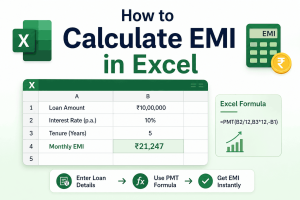
- Loan Amount = ₹10,00,000
- Interest Rate = 10% annually
- Loan Tenure = 5 years
Step 1: Open Excel Sheet
Create columns like this:
| Cell | Value |
| A1 | Loan Amount |
| B1 | 1000000 |
| A2 | Interest Rate |
| B2 | 10% |
| A3 | Tenure (Years) |
| B3 | 5 |
Step 2: Convert the Interest Rate to a Monthly Rate
In B4 enter:
=B2/12
Step 3: Convert Tenure into Months
In B5 enter:
=B3*12
Step 4: Apply EMI Formula
In B6 enter:
=PMT(B4,B5,-B1)
Press Enter.
You will get your monthly EMI.
This is the easiest method for calculating EMI in Excel.
Example EMI Result
For the above loan:
- Loan Amount = ₹10,00,000
- Interest = 10%
- Tenure = 5 Years
Approx EMI = ₹21,247 per month.
This helps borrowers know whether the loan is affordable before applying.
How to Calculate EMI in Excel for Education Loans
Students often borrow funds for tuition fees, hostel charges, books, and travel. Excel can act as an education loan EMI calculator for better planning.
Example:
- Education Loan = ₹15,00,000
- Interest = 11%
- Tenure = 7 Years
Excel Formula:
=PMT(11%/12,7*12,-1500000)
This instantly shows the EMI amount.
This is highly useful for students comparing universities or lenders.
Why Use Excel as an Education Loan EMI Calculator?
Using Excel as an education loan EMI calculator gives many benefits:
1. Compare Multiple Banks
You can compare EMI across lenders offering different rates.
2. Check Affordable Loan Amount
See how much you can borrow based on future income.
3. Adjust Tenure Easily
Change years from 5 to 10 and compare EMI instantly.
4. Plan Post-Graduation Finances
Know repayment obligations after completing studies.
5. Create Custom Loan Tracker
Monitor balances and payments over time.
How to Create EMI Comparison Table in Excel
If you truly want to master smart loan planning, learning how to create an EMI Comparison Table in Excel is an absolute game-changer. Instead of checking one loan option at a time, Excel allows you to compare multiple banks, interest rates, loan amounts, and repayment tenures side by side in a clean, organized format. This turns confusing financial decisions into clear and confident choices within minutes. What may take hours manually can be done in Excel almost instantly.
An EMI comparison table helps you identify the most affordable option, the lowest total interest cost, and the best repayment structure without guesswork. You can simply change one number—such as interest rate or tenure—and Excel immediately updates the EMI results. This level of speed and flexibility makes Excel one of the most powerful tools for borrowers, students, and professionals.
Example Interest Rate Comparison
| Interest Rate | EMI Impact |
| 8.5% | Lowest EMI |
| 9.5% | Moderate EMI |
| 10.5% | Higher EMI |
Example Tenure Comparison
| Tenure | EMI Impact |
| 3 Years | Highest EMI |
| 5 Years | Balanced EMI |
| 7 Years | Lowest EMI |
How to Create Loan Amortization Schedule in Excel
After learning how to calculate emi in Excel, the next useful step is creating an amortization table.
Columns include:
- Month Number
- Opening Balance
- EMI Paid
- Interest Portion
- Principal Portion
- Closing Balance
This helps you track repayment progress every month.
Benefits of Learning How to Calculate EMI in Excel
Accuracy
Excel formulas reduce calculation mistakes.
Speed
Instant EMI calculation in seconds.
Flexibility
Change any number anytime.
Professional Use
Useful for accountants, bankers, students, and finance teams.
Better Decisions
Choose suitable loans confidently.
Common Mistakes to Avoid
When learning how to calculate emi in Excel, avoid these errors:
Using Annual Rate Directly
Always divide the annual rate by 12.
Forgetting Negative Loan Value
Use a negative loan amount in the PMT formula for a correct positive EMI result.
Wrong Tenure Entry
Always convert years into months.
Ignoring Processing Fees
Loan cost may include extra charges.
Not Comparing Options
Always test multiple scenarios in Excel.
How to Reduce EMI Using Excel Planning
Excel is not just for EMI calculation. It helps reduce repayment burden, too.
Choose Longer Tenure
Lower EMI, but more interest overall.
Increase Down Payment
A smaller loan means a lower EMI.
Negotiate a Better Rate
Even a 0.5% lower interest rate can save money.
Make Prepayments
Extra payments reduce the outstanding principal faster.
Use Excel to compare each strategy.
How Students Can Use Excel for Education Loan Planning
Students can use Excel as an education loan EMI calculator in these ways:
- Compare Indian vs abroad study costs
- Check repayment affordability
- Estimate future salary needs
- Track the moratorium impact
- Compare multiple lenders
This makes loan decisions smarter and less stressful.
EMI Calculation for Different Loans in Excel
Once you know how to calculate emi in Excel, you can use it for:
- Home loans
- Car loans
- Personal loans
- Business loans
- Gold loans
- Student loans
One formula works across most installment-based loans.
Why Excel is Better Than Manual EMI Calculation
When it comes to EMI planning, Excel is dramatically more efficient, smarter, and more reliable than traditional manual calculations. Manual EMI calculations often involve long formulas, repeated steps, and a high chance of human error. Even a small mistake in interest rate, tenure, or principal amount can produce inaccurate results and lead to poor financial decisions. Excel eliminates these problems by providing instant, highly accurate calculations with just a simple formula. It saves valuable time, improves decision-making, and gives users complete confidence in their numbers.
| Aspect | Excel | Manual |
| Accuracy | Extremely High | Moderate |
| Speed | Instant Results | Slow & Time-Consuming |
| Scenario Testing | Very Easy | Complicated |
| Tracking | Excellent & Organized | Poor |
| User Friendly | Yes | No |
Excel also allows users to compare multiple loan scenarios, test changing interest rates, create repayment schedules, and monitor balances in seconds—something that is nearly impossible with manual methods. Instead of struggling with complex formulas on paper or calculators, Excel offers a smooth, professional, and stress-free solution. That is exactly why finance professionals, bankers, analysts, and smart borrowers trust Excel over manual EMI calculation methods.
Advanced EMI Planning in Excel
You can also build advanced dashboards with:
- Charts of loan balance reduction
- Interest vs principal graph
- Prepayment impact model
- Bank comparison table
- Loan eligibility tracker
This makes Excel a complete financial planning tool.
Why EMI Awareness Matters
Many borrowers apply for loans without checking their monthly affordability. This can create stress later. Knowing how to calculate EMI in Excel ensures:
- Better monthly budgeting
- No repayment surprises
- Strong credit score
- Lower default risk
- Smarter financial habits
This is especially important for first-time borrowers and students.
Conclusion
Learning how to calculate EMI in Excel is one of the smartest and most valuable financial skills you can develop today. It goes beyond simple number crunching and gives you the power to understand your loans with complete clarity. With Excel, you can calculate monthly EMIs accurately, compare multiple loan offers, test different interest rates, and choose repayment plans that truly fit your budget. Whether you are planning for a home loan, car loan, personal loan, or using Excel as an education loan EMI calculator, the PMT function turns a complex financial task into something fast, simple, and incredibly effective.
Unlike ordinary online calculators, Excel gives you unmatched flexibility, total control, and deeper financial visibility. You can create scenarios, track repayment schedules, estimate total interest costs, and make smarter borrowing decisions before signing any loan agreement. By mastering EMI calculations in Excel, you are not just learning a formula—you are building lifelong money management skills that can reduce stress, save money, and help you plan your future with confidence and success.
Frequently Asked Questions

Related Courses
Explore our programs
 Admission Open
 Admission Open
 Admission Open
Find a Program made just for YOU
We'll help you find the right fit for your solution. Let's get you connected with the perfect solution.

Is Your Upskilling Effort worth it?
 ROI Calculator

Are Your Skills Meeting Job Demands?
Try our Skill Gap tool
Experience Lifelong Learning and Connect with Like-minded Professionals
Explore Jaro Connect

